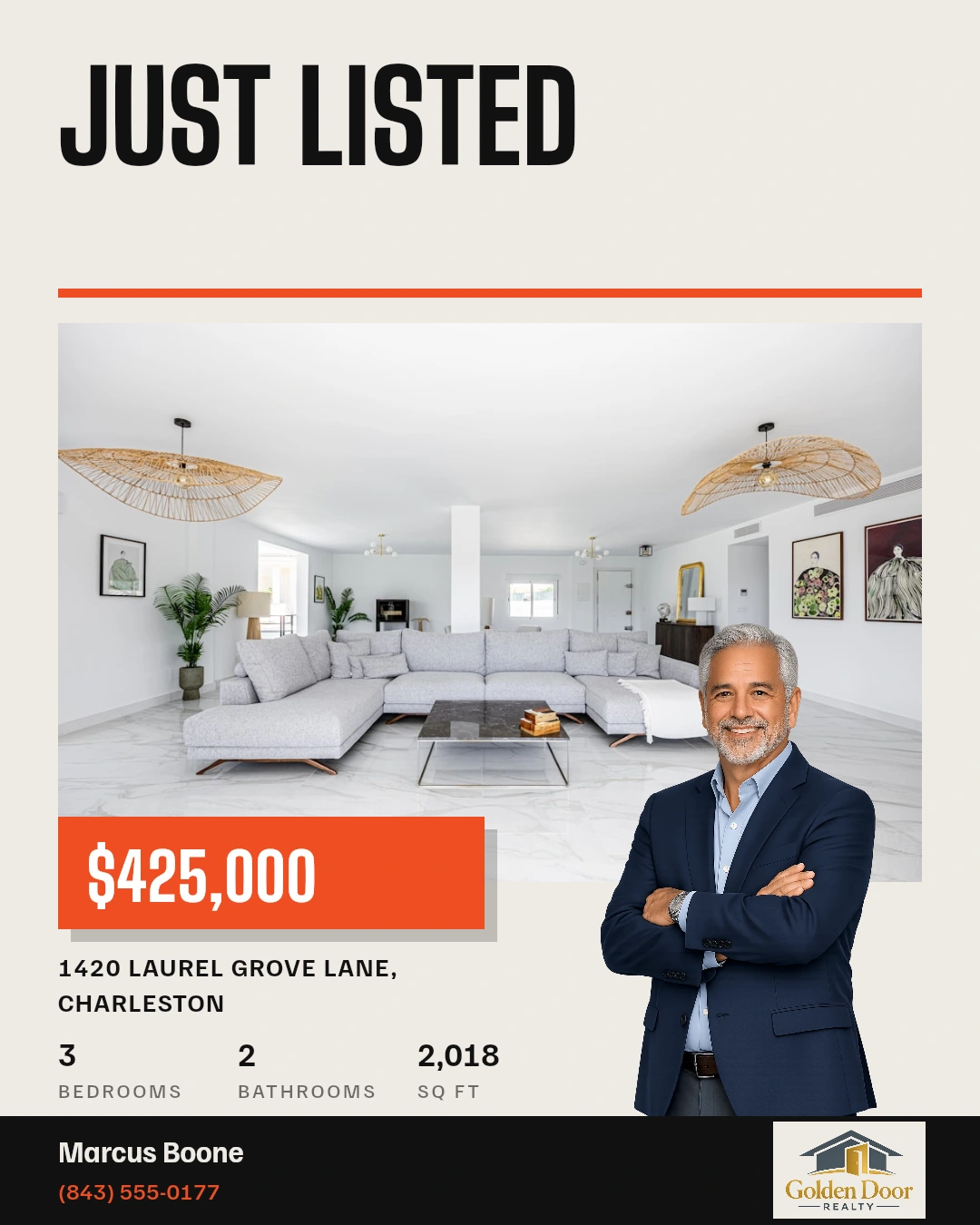
LISTING POSTS · PROMOTE A LISTING

Your listing.
Your next post,
story or video.

Turn your property photos and details into listing content. Choose your format, make it yours, then review and publish or schedule.

Your format, photos and channels. One clear starting point.

CHOOSE HOW YOUR LISTING SHOWS UP

One listing.
Four ways to show it.

A new post for the feed, a story for today, or a video tour. Start with the format you want to create.

Feed post · 1080 × 1350

Feed Post

A designed cover. Your listing photos. A caption in your voice.

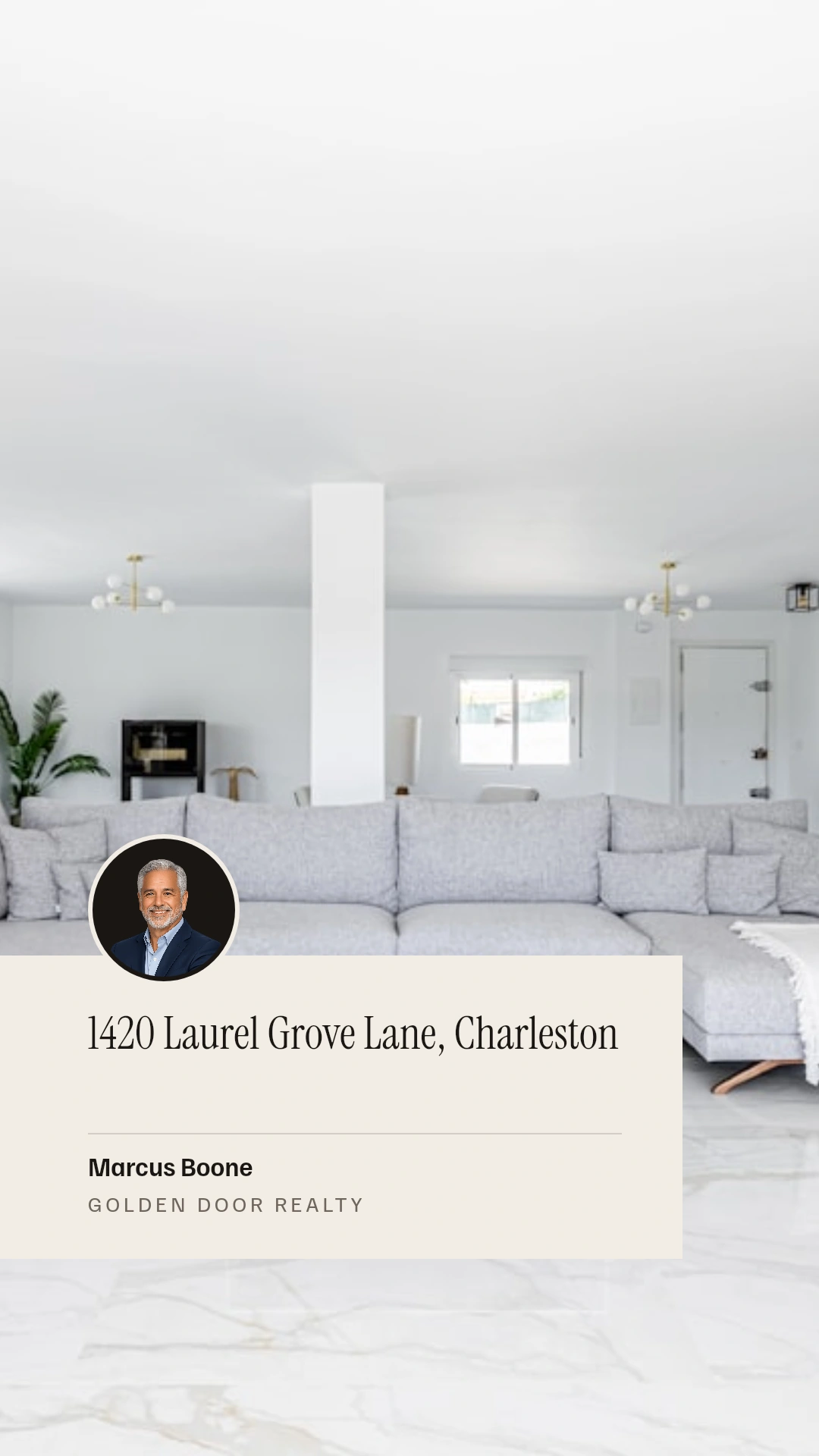
Story · 1080 × 1920

Story

A vertical sequence for your Facebook and Instagram stories.

Video cover · 9:16

Vertical video

Turn your photos into scenes made for a full-screen view.

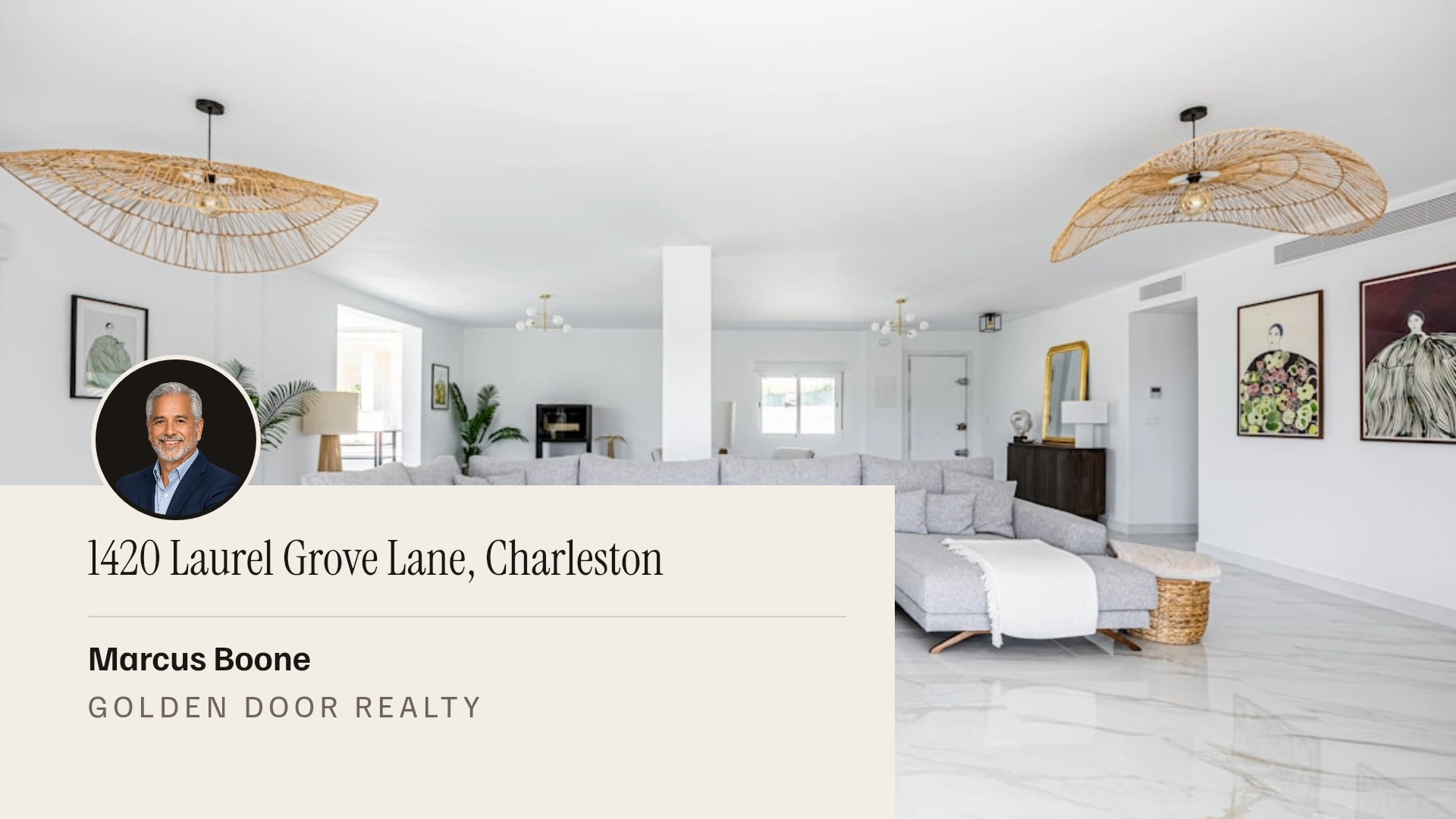
Video cover · 16:9

Landscape video

Give your property tour a wider view with a horizontal video.

Real Velisto templates with sample property details and branding. Video examples show their cover designs.

FROM PROPERTY TO PUBLISH

The listing is ready.
Let’s get it seen.

Start at Create → Promote a listing → Single post. Set up the content, choose its design, then finish in the composer.

  1. 01

    Choose a listing.

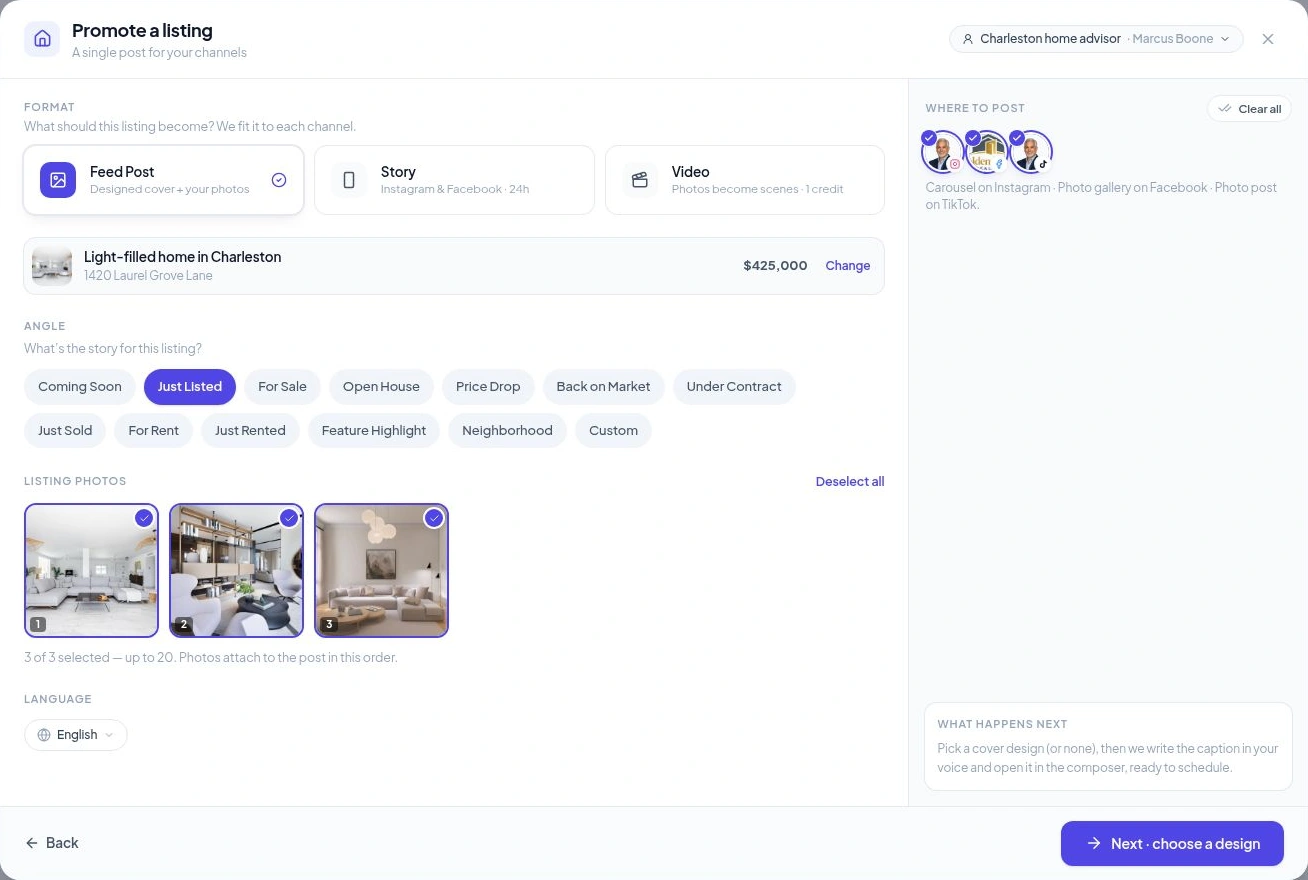
    Open Create → Promote a listing, choose Single post and select a property. You can also Import from URL or enter Quick details.

  2. 02

    Set up your content.

    Choose Feed Post, Story or Video. Pick the angle, order your photos and select your channels. Check the caption language for posts and videos.

  3. 03

    Choose the look.

    Pick a cover design for your post or story, or use your photos on their own. For video, choose the overlay and music.

  4. 04

    Generate. Then review.

    Open the result in the composer. Check the content, make your final edits and choose when it goes out.

FROM THE PROPERTY TO YOUR BRAND

Choose a look.
Make it yours.

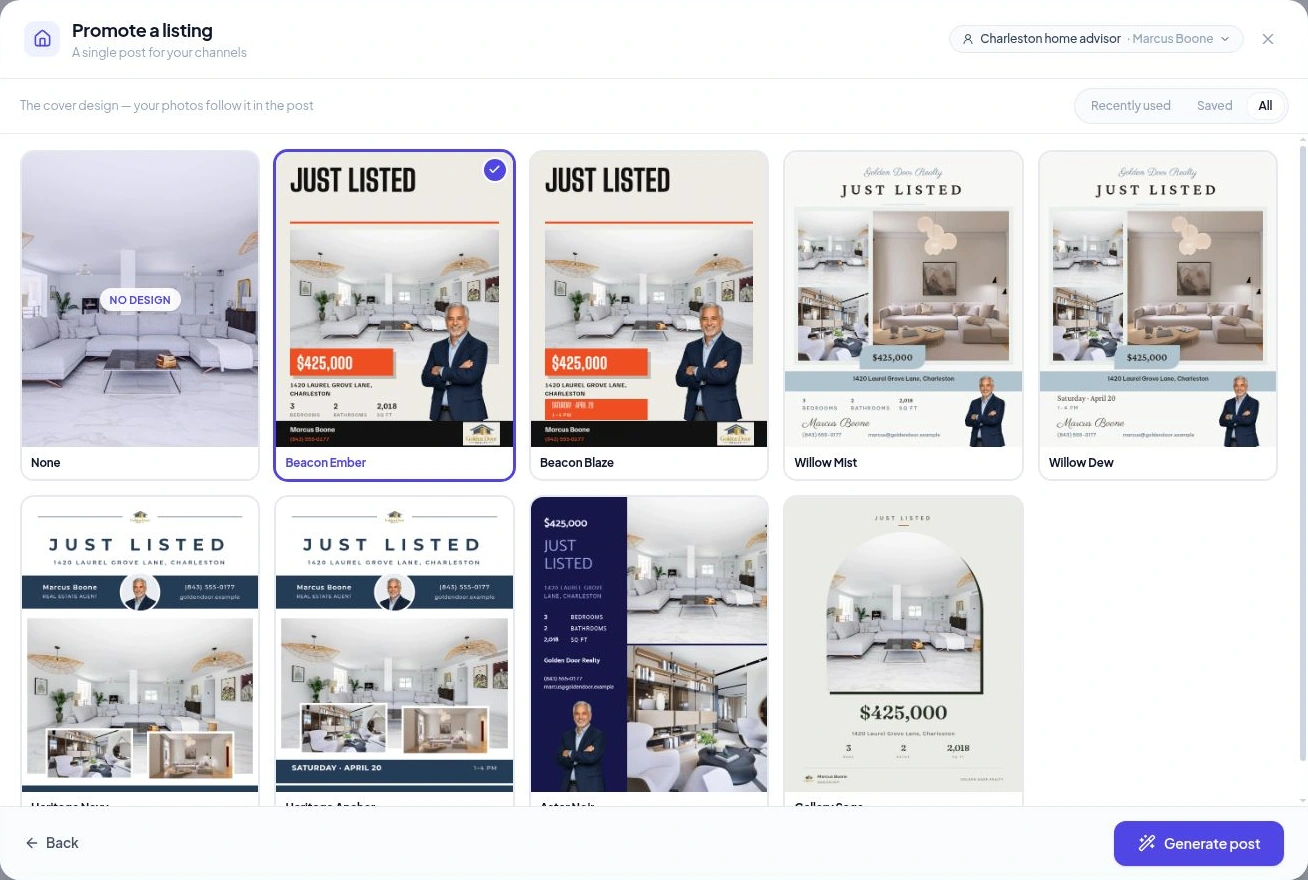
Browse all designs, return to a saved favorite or use your photos with no cover. For a video, the next step brings together your branded overlay and music.

Current Promote a listing design gallery with selected Beacon Ember and other real Velisto templatesView preview
A designed cover leads the post. Your selected listing photos follow.

THE PROPERTY IS THE STAR. THE BRAND IS YOURS.

Your photos.
Your voice.
Your way.

Bring the best of the property and the personality of your brand into the same piece of content.

  • Lead with the right photos.

    Choose the images and their order. They become your post’s gallery, story frames or video scenes.

  • Make your branding part of it.

    Fill a real estate template with your listing and saved brand details, then add your finishing touches.

  • Put it in your own words.

    Generate captions for feed posts and videos using your chosen voice and language. Edit them before sharing.
Explore your Brand Kit
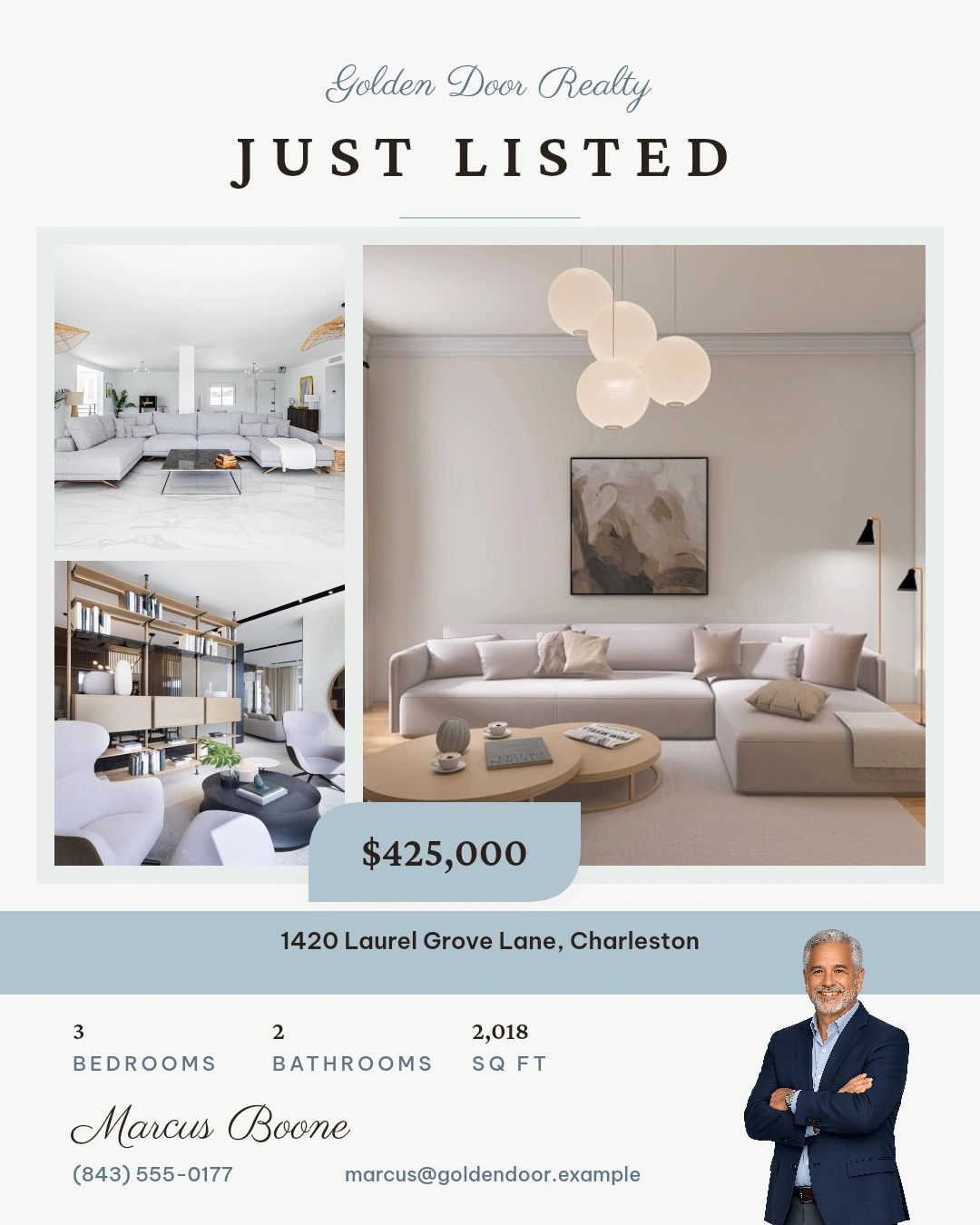
Willow Mist template showing a three-photo property layout, price, listing details and agent brandingView preview
Willow Mist · A different look for the same listing.

YOU HAVE THE FINAL SAY

A last look.
Then out into
the world.

Generating a single post opens your content in the composer. Review the caption and media, check the channel previews, then publish, schedule or save a draft.

Explore publishing & scheduling
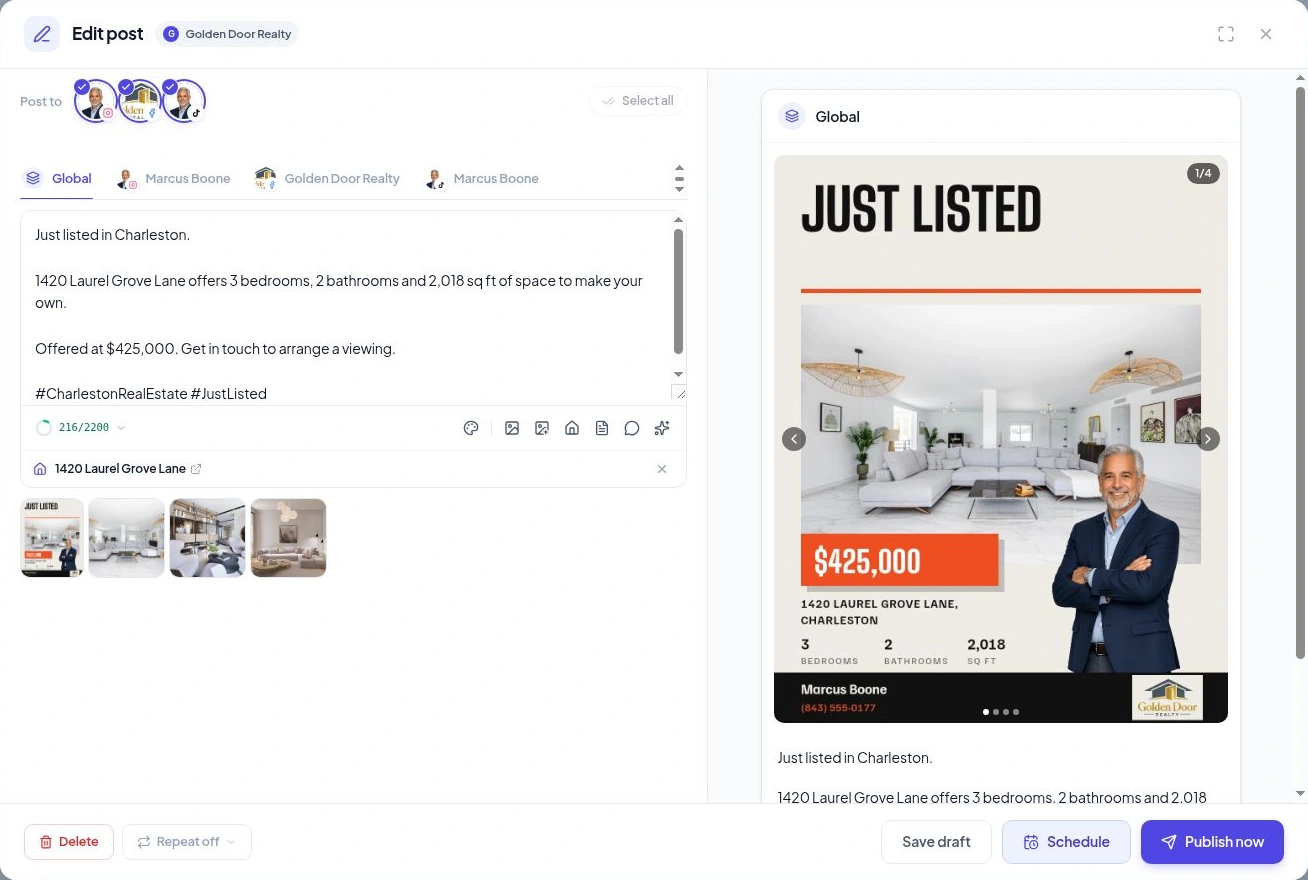
Velisto composer layout with a listing caption, attached media, channel preview and publishing controlsView preview
Check the details. Choose when to share.

YOUR QUESTIONS, ANSWERED

A little more
about listing posts.

The useful details before you give your next listing its moment.

Visit the FAQ hub
What can I create from a listing?
Choose Feed Post, Story or Video. Video supports vertical 9:16 and landscape 16:9 formats. Start with a listing and choose the content you want to make.
Can I use my listing photos without a template?
Yes. Feed posts and stories can use the photos on their own. When you choose a design, it becomes the cover and your selected listing photos follow it. In a story, each media item becomes a frame.
Does Velisto write the caption?
Velisto generates captions for feed posts and videos using the listing, your chosen voice and output language. You can edit the caption in the composer. Stories do not carry a caption.
How are listing videos created?
Your selected property photos become video scenes. The selected channels determine the initial video shape. Review the vertical or landscape option; eligible channel combinations can generate both versions. Choose an overlay and music for each version, then generate the video. You need at least three photos to create a listing video.
Can I review the content before it is published?
Yes. Generating content opens a draft in the composer. Review and edit it, then choose to publish, schedule or save it for later.
How is this different from Listing Campaigns?
Choose Single post under Promote a listing for an individual post, story or video. Use Listing Campaigns when you want to plan a coordinated set of content around a property.

YOUR NEXT LISTING HAS SOMETHING TO SAY

Give it a place
in the feed.

Start with a property. Make something worth sharing.
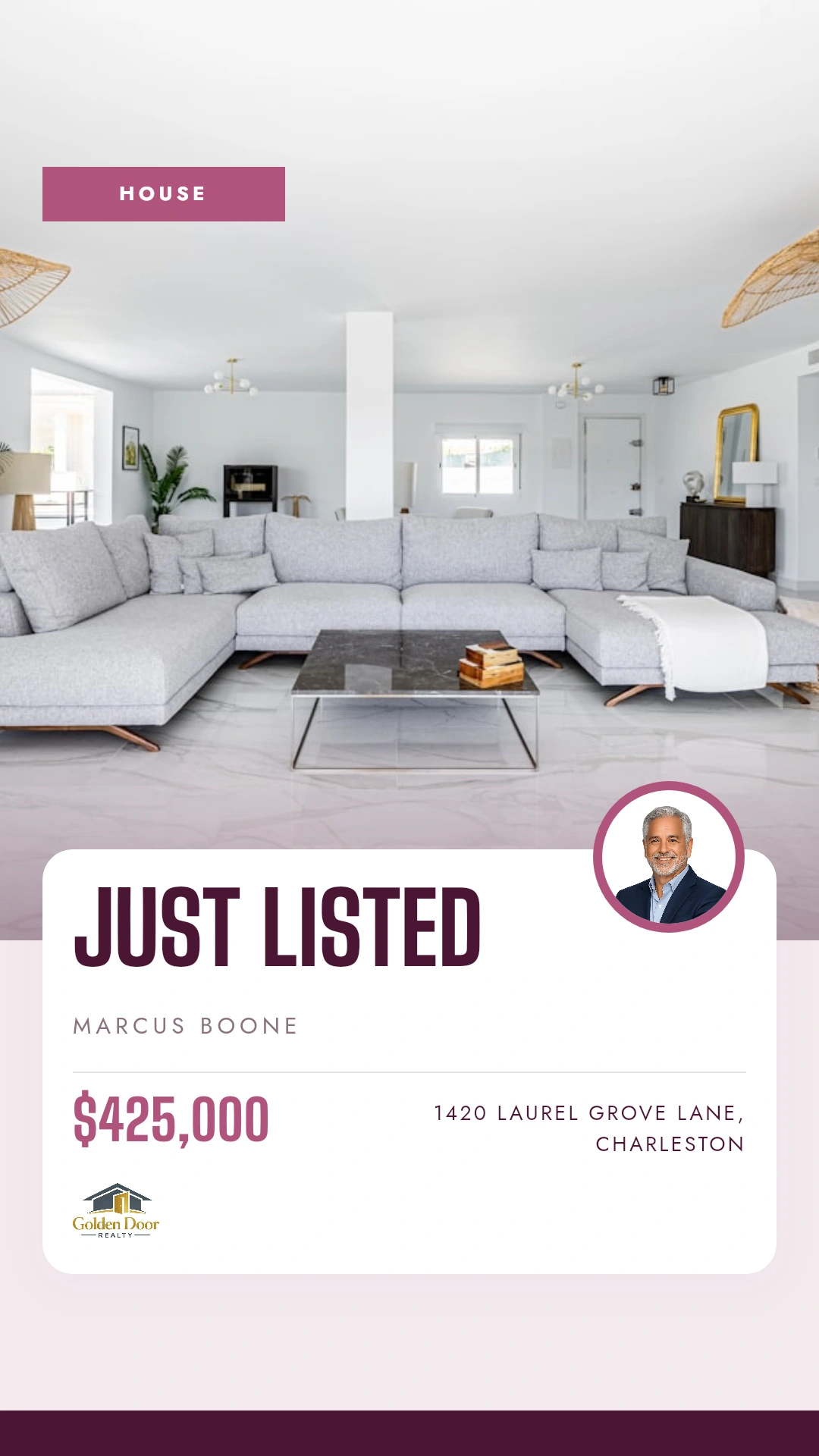
Listing preview

See Velisto in action

Demo video coming soon

This space is ready for the Velisto product tour.

Explore how Velisto works