01
Showcase post
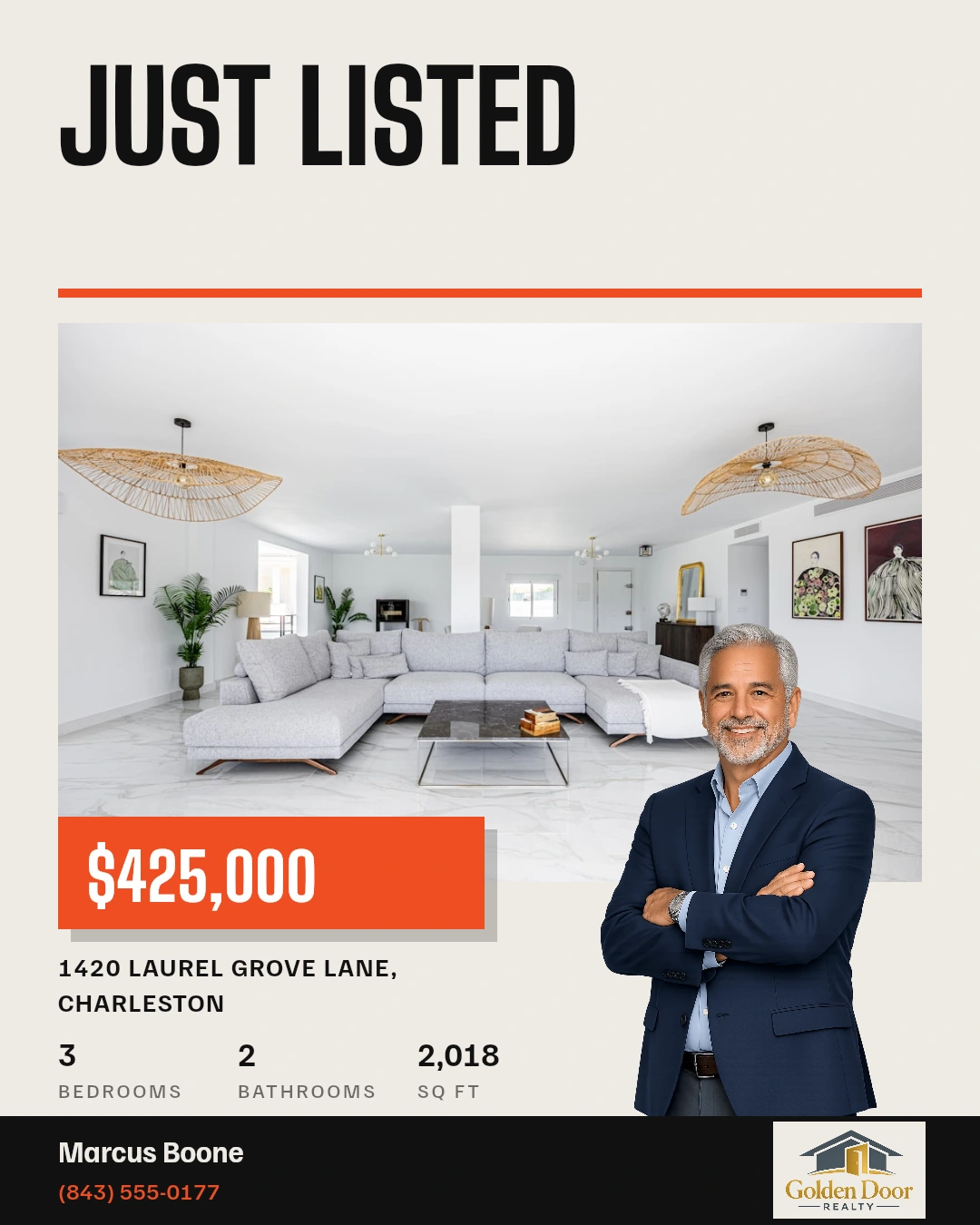
Feed post
Introduce the whole property.
Lead with a designed cover or your photos, followed by a caption built around your chosen angle.
LISTING CAMPAIGNS · PROMOTE A LISTING
Give your property more than one moment in the feed. Choose Listing campaign under Promote a listing. Plan posts, stories and optional reels together, then review and schedule the ready posts from one place.
BUILD THE CAMPAIGN YOUR LISTING NEEDS
Introduce the property, highlight a detail, invite people in. Choose the posts that fit your listing and the moment.
Lead with a designed cover or your photos, followed by a caption built around your chosen angle.
Focus on a standout feature with one to three selected photos and a caption about what makes it special.
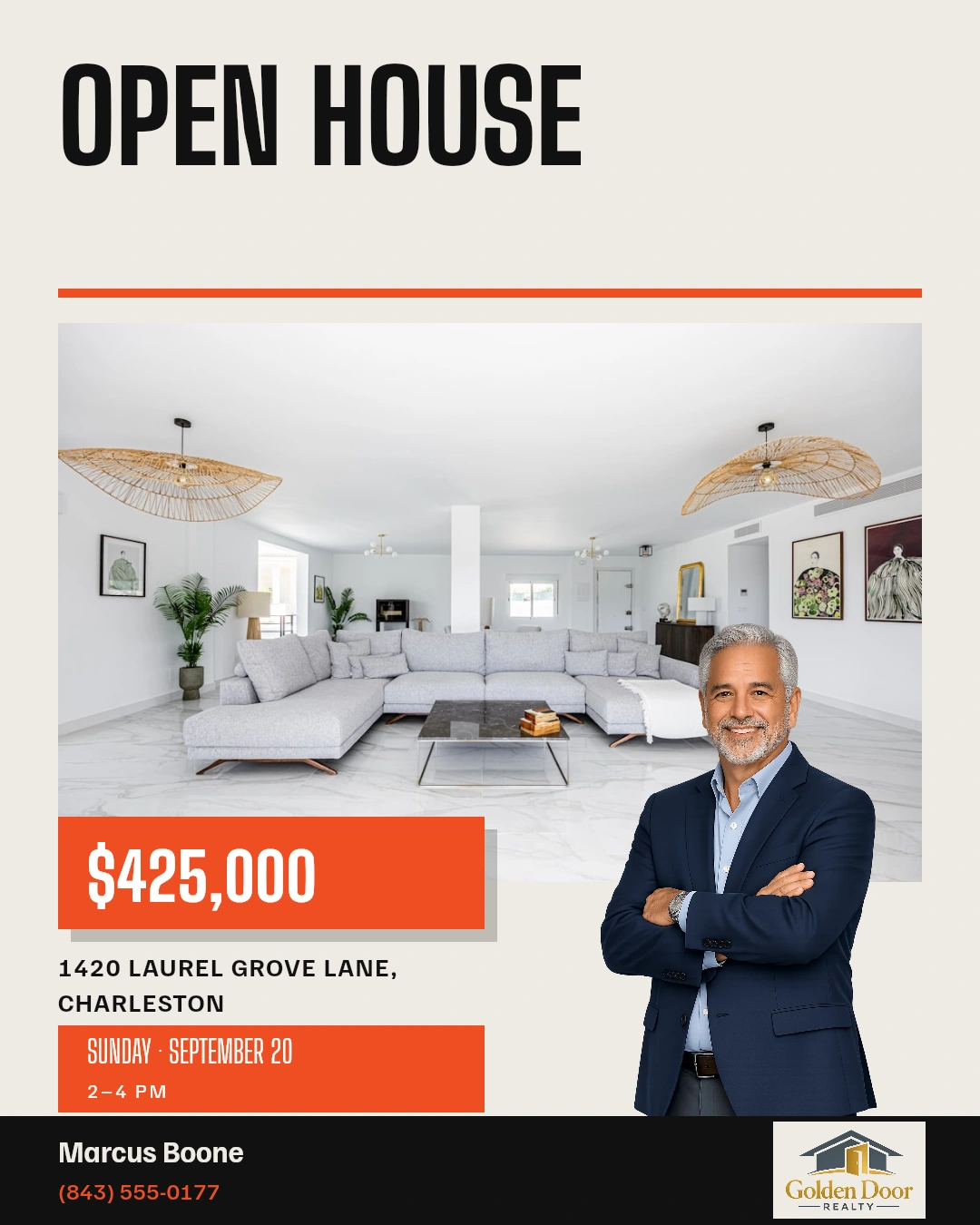
Create a designed invitation with the event date and time, and plan its post before the doors open.
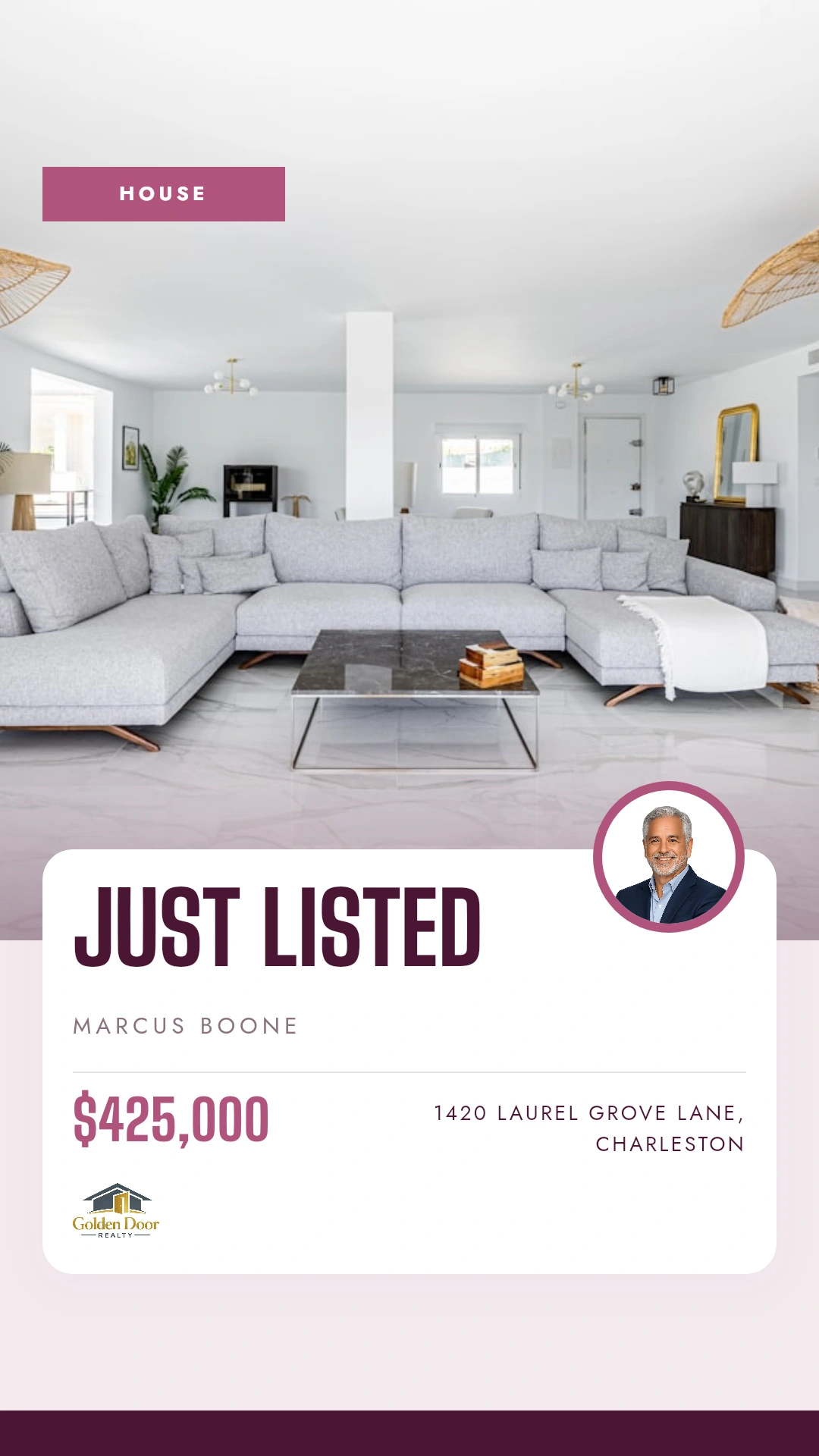
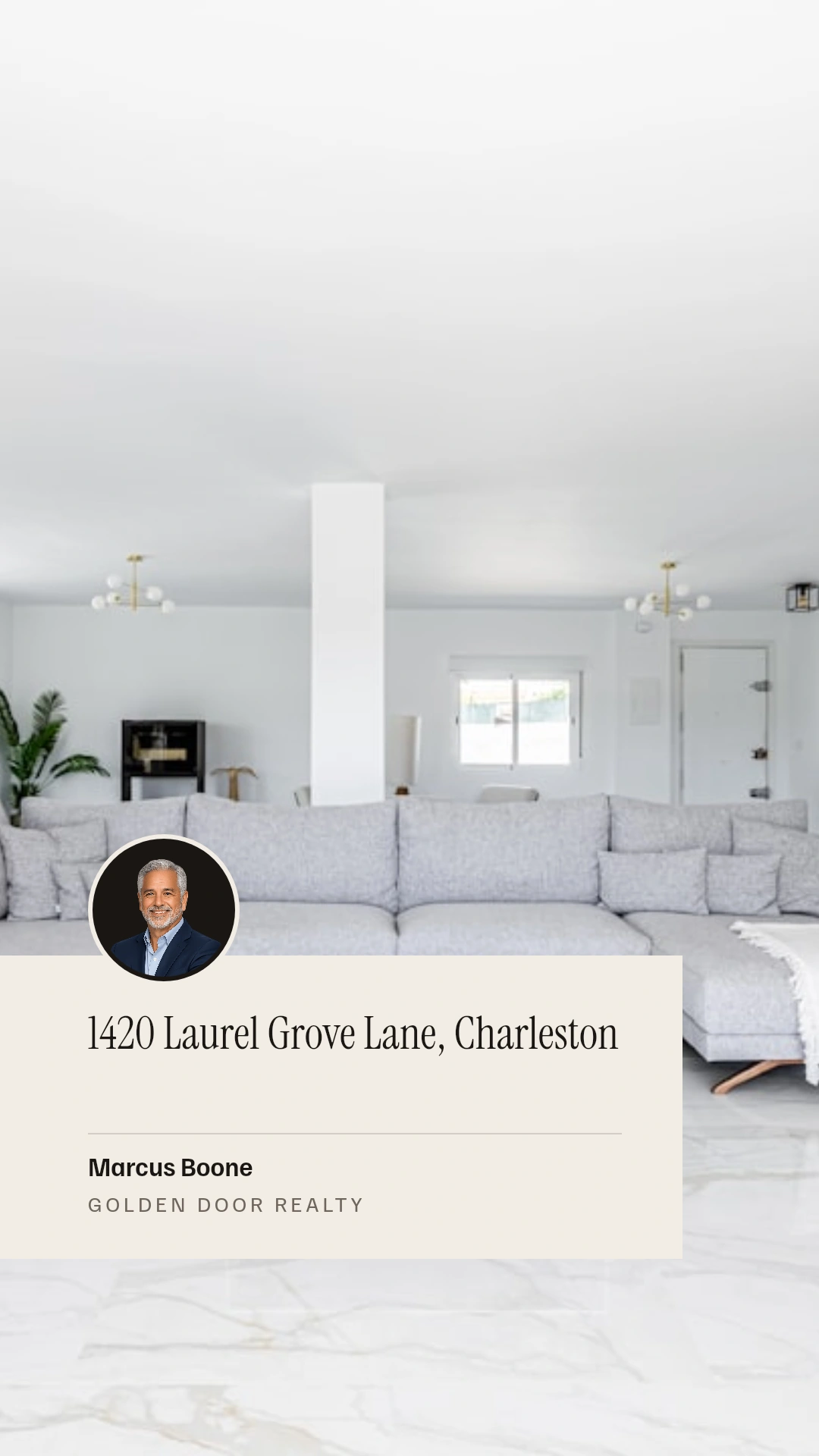
Choose a vertical template or a listing photo for your Instagram and Facebook stories.
Add a vertical video with photo scenes, an overlay and music. Available when reels are enabled for your workspace.
Create a horizontal video tour with the Single post option and schedule it alongside your campaign.
Velisto templates and listing photos shown with sample content. Video examples are still cover previews. Campaign posts depend on your selected channels, listing details and workspace settings.
START WITH THE STORY YOU WANT TO TELL
Choose the moment for this campaign. Velisto uses that angle to shape the content and suggest a starting mix.
Build anticipation before the listing launches.
Introduce the property and its strongest features.
Put the event and invitation at the centre of the story.
Give the new price a fresh moment of attention.
Share the next chapter with your audience.
Celebrate the result and stay visible after the sale.
Have a different story in mind? Enter your own angle.
GIVE EACH POST ITS PLACE
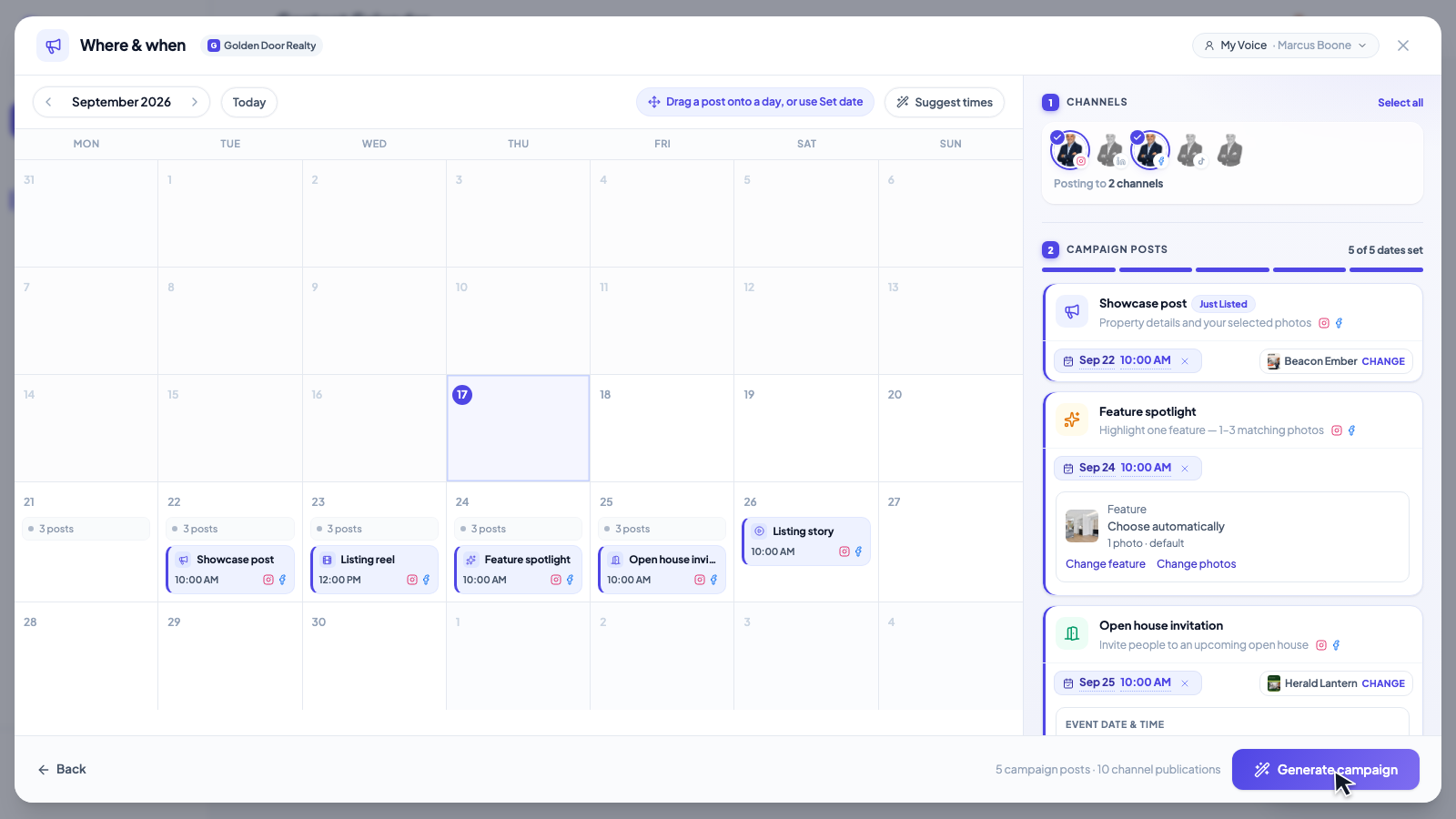
Plan the sequence on the calendar before you generate. Keep your listing visible across several days, with a different reason to stop and look.
FROM ONE PROPERTY TO A CONNECTED CAMPAIGN
Keep the whole campaign in view. You decide what gets shared and when.
Open Create → Promote a listing → Listing campaign. Choose a saved property, Import from URL or enter Quick details.
Choose the angle, select your photos and pick the language for your captions.
Choose channels, add the content you want and set its designs, dates and times.
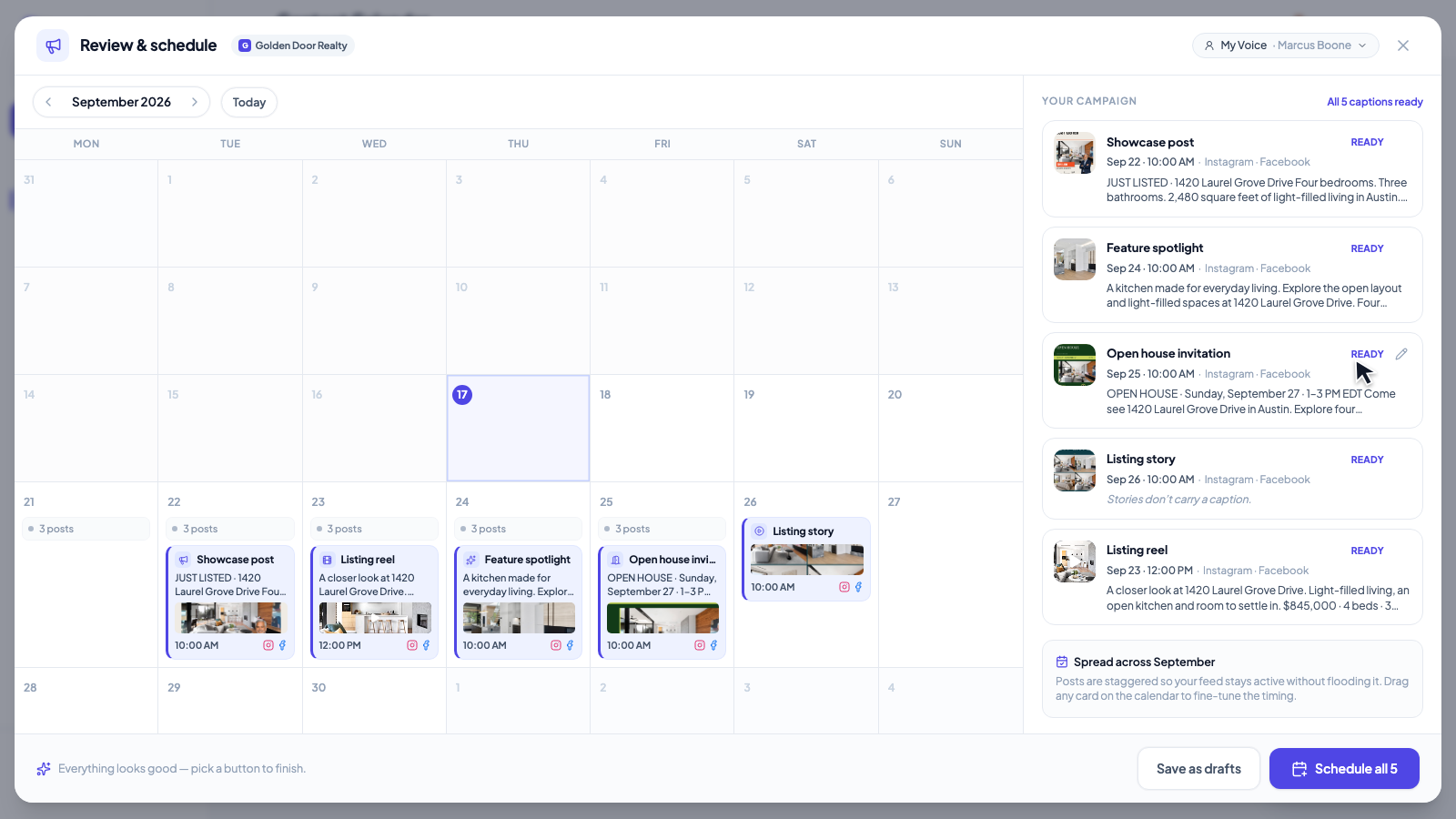
Choose Generate campaign. In Review & schedule, check each post and its timing, including the finished listing reel. Wait for video rendering to finish, then use Schedule all or Save as drafts.
Only need one post?The Single post option creates an individual feed post, story or video.
YOUR QUESTIONS, ANSWERED
A few useful details before you plan your next campaign.
Visit the FAQ hubYOUR LISTING HAS MORE THAN ONE STORY
Bring its photos, details and next big moment into one campaign.