
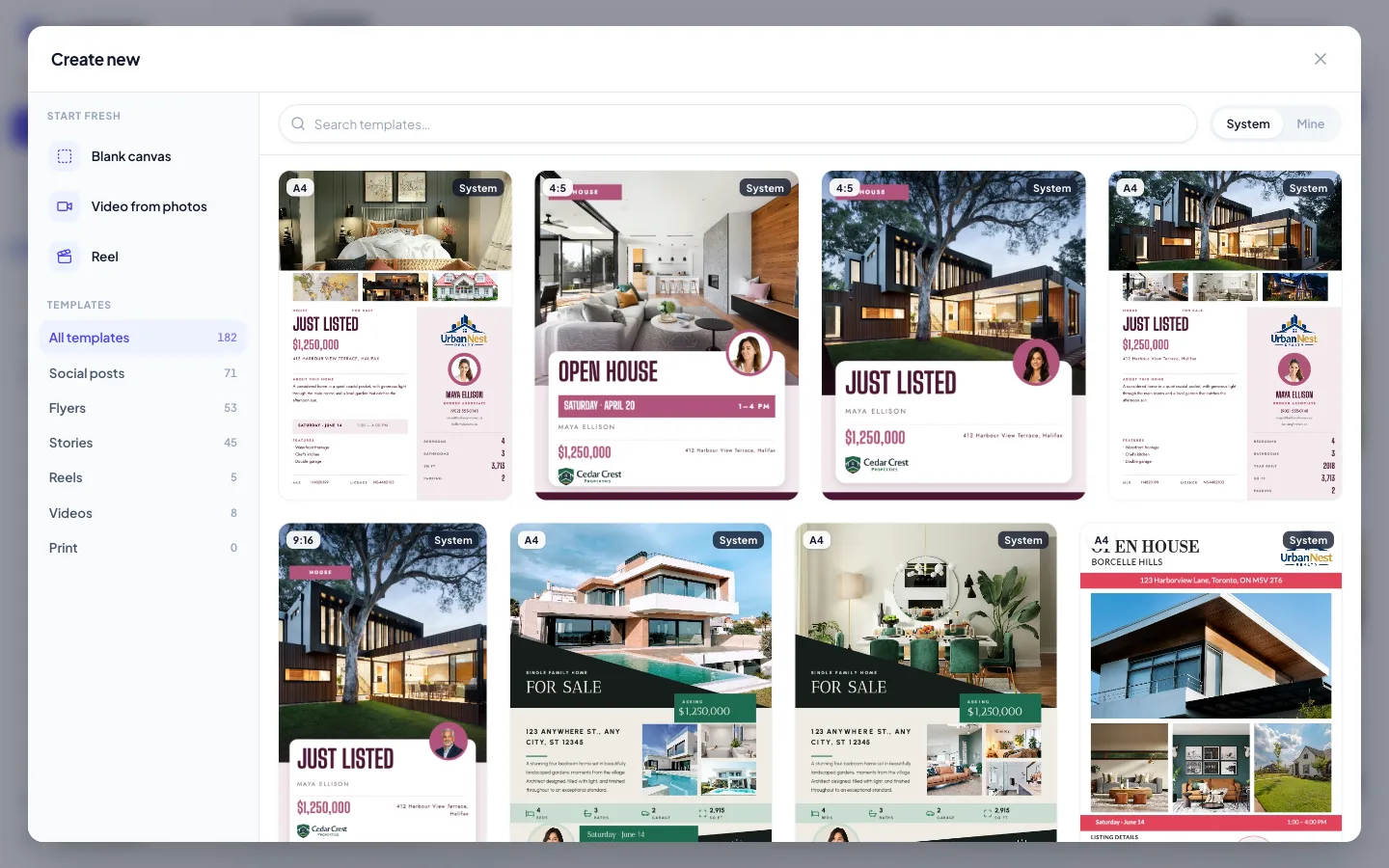
The template gallery is where you create design-first: you've seen a look you want — a flyer, a story card, a carousel — and you want that, with your listing in it. Open Content and hit Create.
Browse the gallery
Templates are organized by format (social posts, flyers, stories, reels, videos) and come in families — sets of designs that share one visual style, so a feed post, story and flyer can all match. Filter to a format, search, or flip between System templates and Mine — the ones you've saved. You can also start from a blank canvas, a video from photos, or a reel.
Fill it
Choose Use template on a design and Velisto's fill surface takes over:
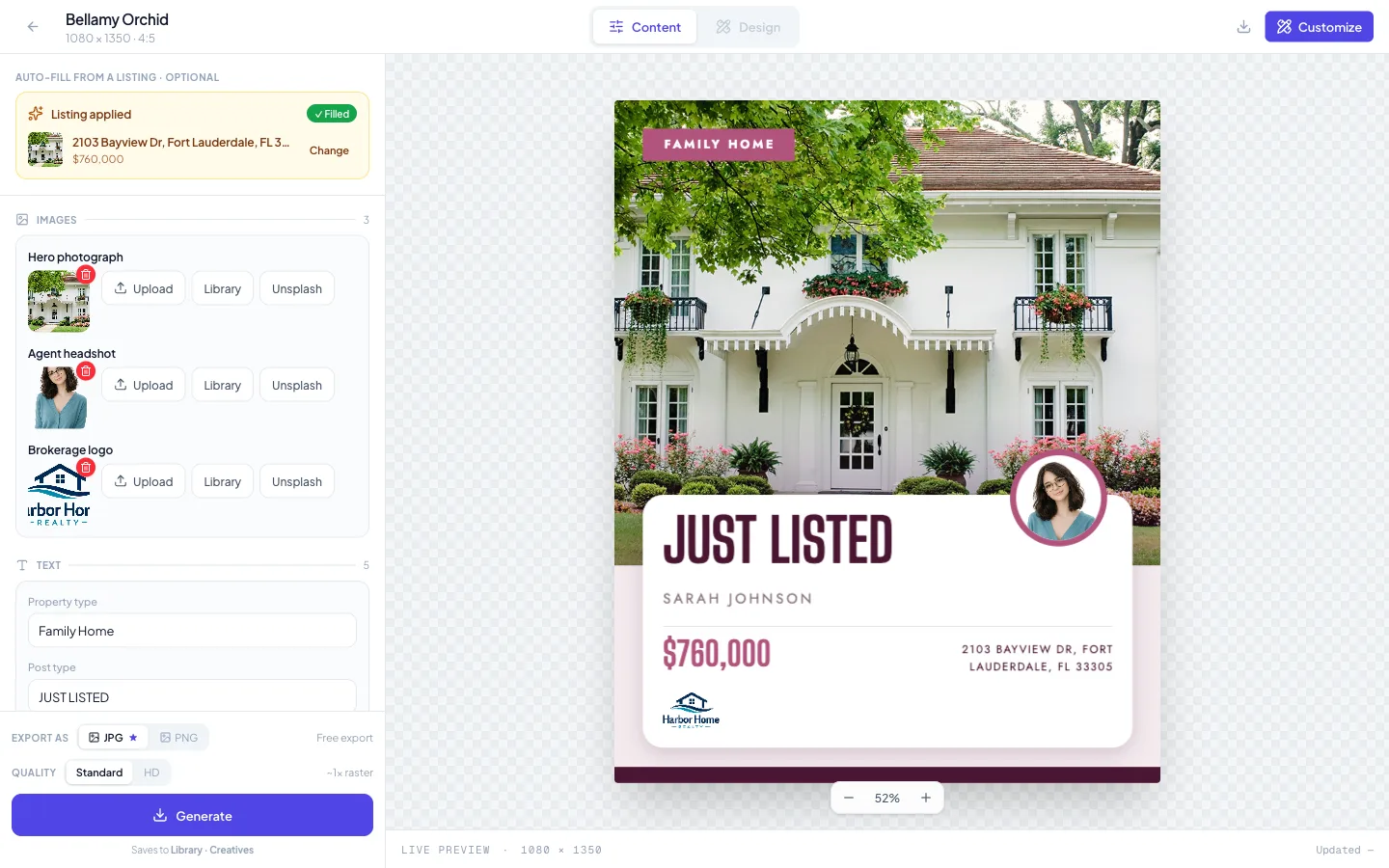
- Pick a listing in the auto-fill banner. The template's photo slots, price, address and details fill in from the listing instantly — and your logo, colors and headshot are already applied from your brand settings. The preview updates live.
- Adjust what you want. Swap any image slot (upload, your library, or stock), edit any text field, tweak until it's yours. Nothing is locked.
- Generate. Export the finished design — it saves to your library, ready to attach to a post, caption and schedule.
Pick templates for the photos you have. A template built around one dramatic hero image needs one dramatic hero image — if your best shots are interiors, choose a multi-photo layout instead.
Fine-tuning and saving
Need to go deeper than swapping photos and text — move elements, restyle, start from a blank canvas? Open the design in the studio editor for full control. Designs you like can be saved to your library and reused as your own templates, so the look you refined once becomes your starting point next time.